Sri Lanka's First MCP Server for Business Consultation: A Complete Guide to Connecting Your AI Assistant to Bizadvisor
Your company's records already live in the Bizadvisor platform. Who your directors are, how many shares each shareholder holds, where your Form 1 and Business Registration certificate are filed. Until now, the only way to look any of that up was to log in and go find it yourself.
A new page in the platform, called Developer tools, changes that. You can now connect an AI assistant you already use, like ChatGPT or Claude, to your Bizadvisor account, and simply ask it. "Who are our current directors?" "What percentage does Nimal own?" "Send me every document we have for the bank." Your assistant reads the answer straight out of your records and tells you.
Bizadvisor is the first business consultation firm in Sri Lanka to offer this. No other company secretarial or corporate services provider in the country lets you connect your own AI assistant to your company records and read them directly.
You do not need to be a developer to set this up. It takes about two minutes, and this guide walks through every click. Being first also means you are early, so if something here is confusing, or it does not work the way this guide says it should, tell us and we will fix it.
What this actually is
An AI assistant on its own knows nothing about your company. It has never seen your records. Ask ChatGPT who your directors are today and it will simply guess, and it will be wrong.
Connecting it to Bizadvisor gives it permission to look. You create a key inside the Bizadvisor platform, paste that key into your assistant once, and from then on, whenever you ask a question about your company, your assistant goes and reads the answer out of your actual records instead of guessing.
That permission is read-only. Your assistant can see whatever you can see when you log in. It cannot change a single thing, it cannot delete anything, and it cannot file anything in your name, no matter what it gets asked to do.
It also stays your assistant. We are not putting a chatbot on our website. You carry on using whichever one you already use, and we simply let it read your records when you ask it to.
What you can ask it
Once it is connected, your assistant can look up five kinds of information.
Your own profile, and which companies you belong to.
Everything about one of your companies: your directors, your shareholders and exactly how many shares each one holds, your company secretary, your authorized person, and the client manager looking after you at Bizadvisor.
Your documents, which it can actually fetch and hand to you: Form 1, the Business Registration certificate, the Articles of Association, the TIN certificate, your BO forms, and your authorized person's signed appointment letter.
The list of things Bizadvisor does for companies, from incorporation and tax registration to annual returns and closing a company down.
And all of Bizadvisor's own written guidance. Every handbook guide and every blog article, with the full text already loaded. So when you ask "what do I need for a TIN registration?", your assistant gives you the real answer instead of a link to go and read.
Questions that work well:
- "Which companies am I associated with, and what's my role in each?"
- "How many shares does Nimal hold, and what percentage of the company is that?"
- "Get me our Form 1 and our Business Registration certificate."
- "Put together everything about my company that the bank will ask for."
- "Do we have a TIN certificate on file? If not, what's involved in getting one?"
- "One of our directors resigned. What do we do?"
Look at what that last question needs. To answer it properly, your assistant has to pull up your actual list of directors and read our guide on changing directors, then put the two together. Neither half is much use on its own. That is the sort of thing this is genuinely good at.
What it cannot do
It cannot change anything. It will cheerfully explain what a company name change involves. It cannot actually perform one.
It cannot see anybody else's data. Your key is yours. If your assistant asks about a company you are not part of, the request is simply refused.
It cannot see your payments, or how far along a job you have running with us has got.
It cannot see personal identity documents. NIC and passport scans belonging to your directors and shareholders are deliberately kept out of its reach.
So when you do need something actually changed, it works the way it always has: talk to us at support@bizadvisor.lk.
Step 1: Create your key
Log in to the Bizadvisor platform and click Developer tools, right at the bottom of the menu on the left. You can also go straight there: platform.bizadvisor.lk/mcp.
Choose the assistant you want to connect, using the row of tabs (ChatGPT, Claude Desktop, Claude Code, or Other MCP client). Then click the blue Generate token button in the top right.
"Token" is just the technical word for the key we have been talking about. It is a long string of random letters and numbers, and it works like a password: anyone holding it can read your company records, so treat it like one.

Step 2: Copy it straight away, because you only get one look
The moment you create the key, we copy it to your clipboard for you and fill it into the box below. That is also the only time you will ever see it.

We do not keep a copy of your key. We only keep a scrambled version of it, which is enough to check that a key is genuine but cannot be turned back into the key itself. That means we genuinely cannot show it to you a second time, and we cannot recover it for you if you lose it. If you leave the page without copying it, your only option is to create a new one.
So: copy it, and paste it somewhere safe before you go anywhere else.
Step 3: Connect your assistant
Your key gets tucked into the end of a web address, like this:
https://api.bizadvisor.lk/mcp/YOUR_TOKEN
That single line is the whole setup. There is nothing else to configure. The page builds it for you with your real key already in place, ready to copy, so you never have to type any of it out. Wherever you see YOUR_TOKEN below, that is where your own key sits.
Now follow the steps for whichever assistant you use.
ChatGPT
Copy the address from the ChatGPT tab in Developer tools.
Then, in ChatGPT:
- Open the ChatGPT desktop app and go to Settings → Plugins → MCP.
- Click Add new. A form called Connect to a custom MCP opens.
- Under Name, type anything you like. "Bizadvisor" is the obvious choice.
- For Type, choose Streamable HTTP.
- Paste the address you copied into the URL box, and click Save.
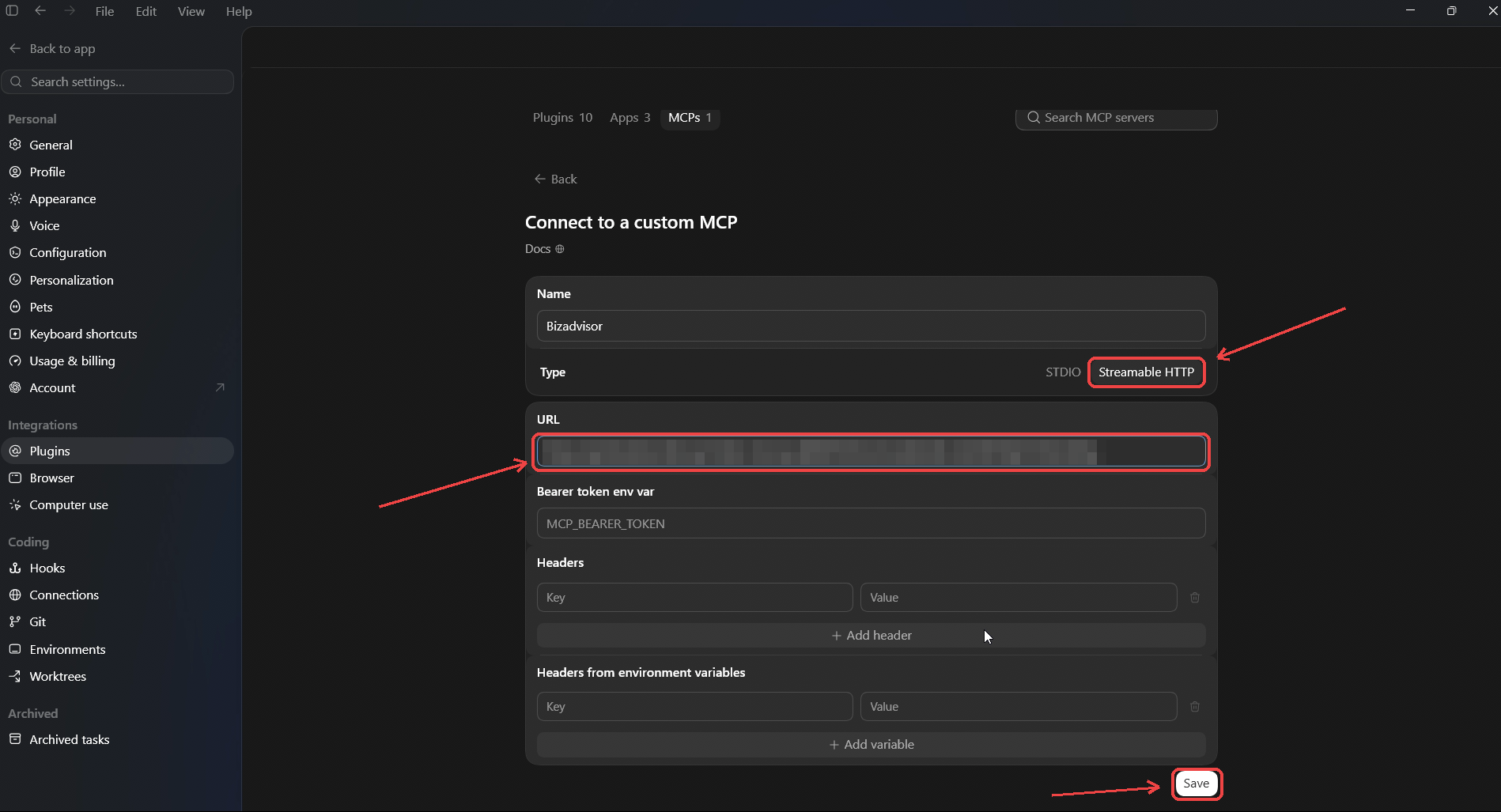
Leave everything else alone. You will notice there is nowhere to enter a username or password, and that the Bearer token and Headers boxes stay empty. That is all normal. Your key is already inside the address.
Claude Desktop
Copy the address from the Claude Desktop tab in Developer tools.
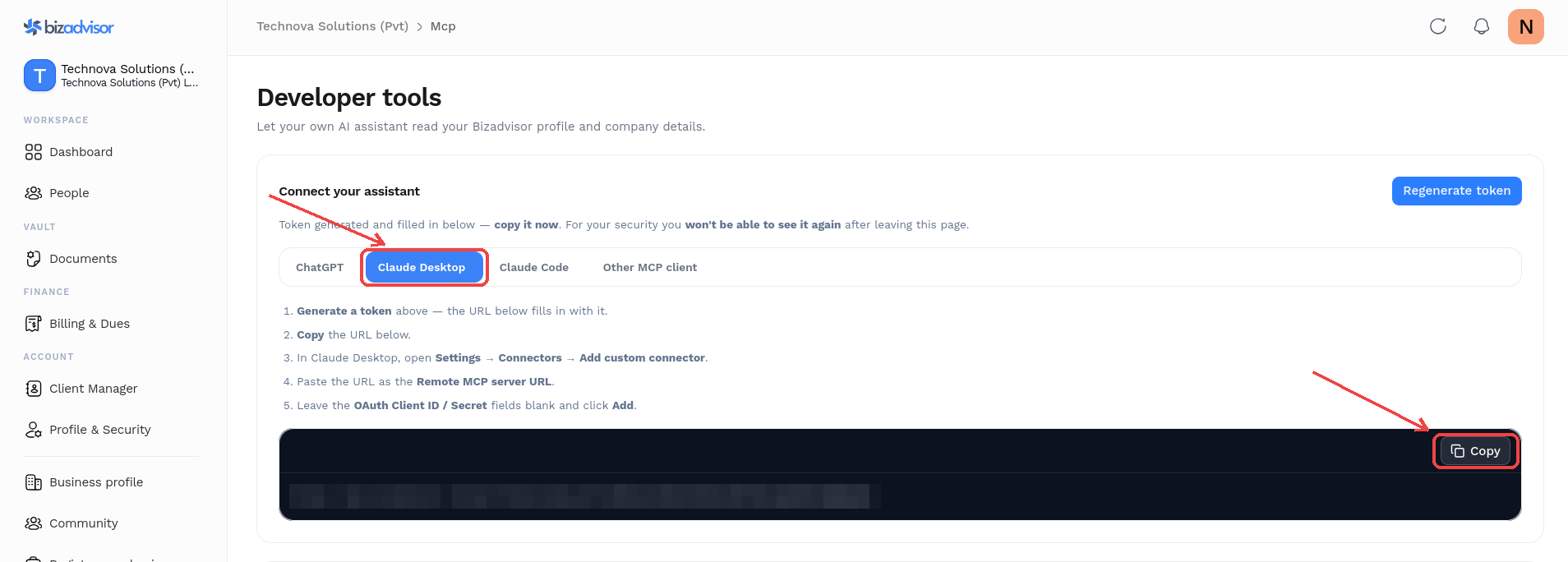
Then, in Claude:
- Open Settings → Connectors, and click Add custom connector.
- Give it a name, such as "Bizadvisor".
- Paste the address you copied into the box below the name.
- Leave the OAuth Client ID and Client Secret boxes empty. You do not need them. Click Add.
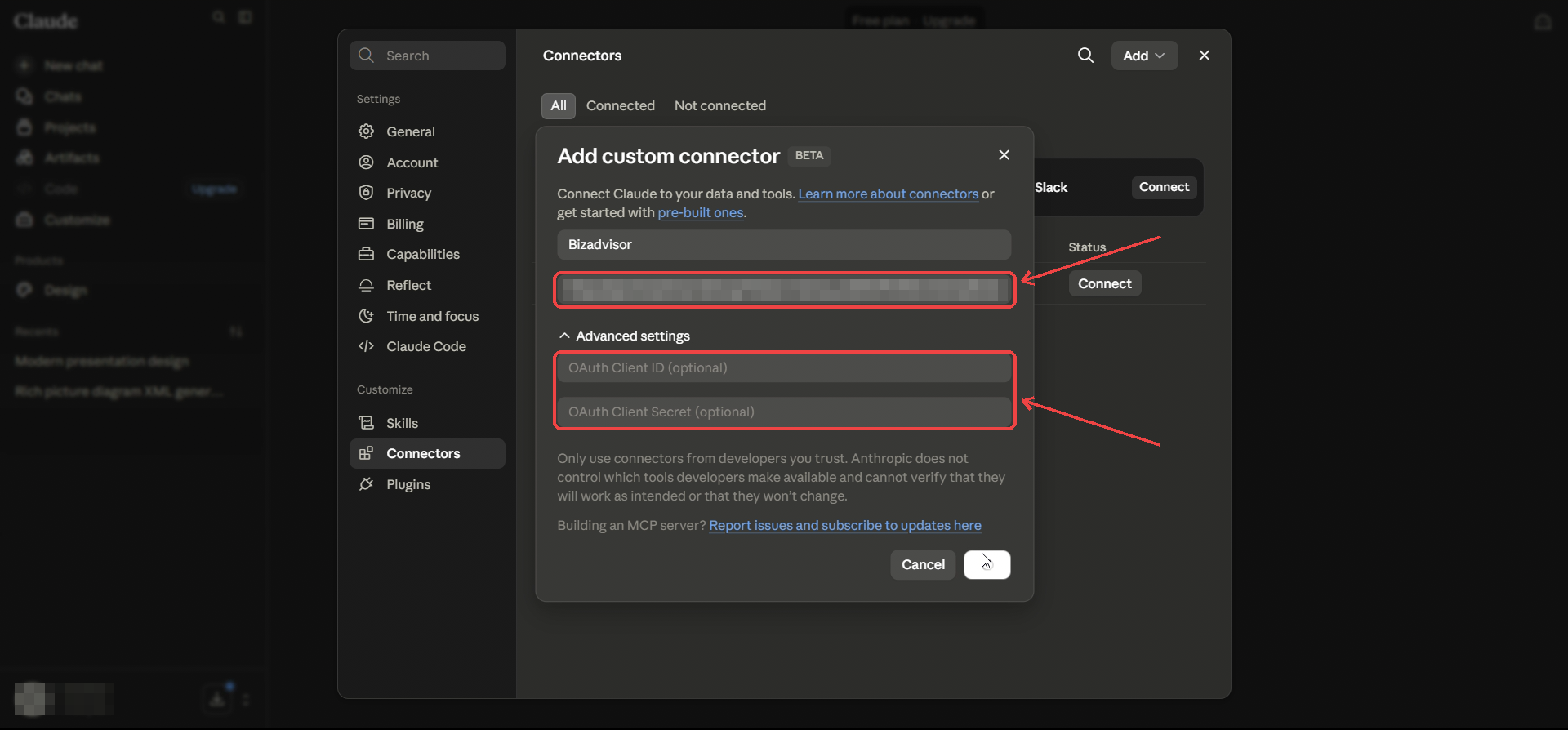
Those two OAuth boxes are the ones people worry about. They are genuinely optional, and you should leave them blank.
Claude Code
This one is for developers, and you can safely skip it if you are not one. Instead of an address, the page gives you a command to run in your terminal:
claude mcp add --transport http bizadvisor "https://api.bizadvisor.lk/mcp/YOUR_TOKEN"Copy it from the Claude Code tab, paste it into your terminal, and run it.
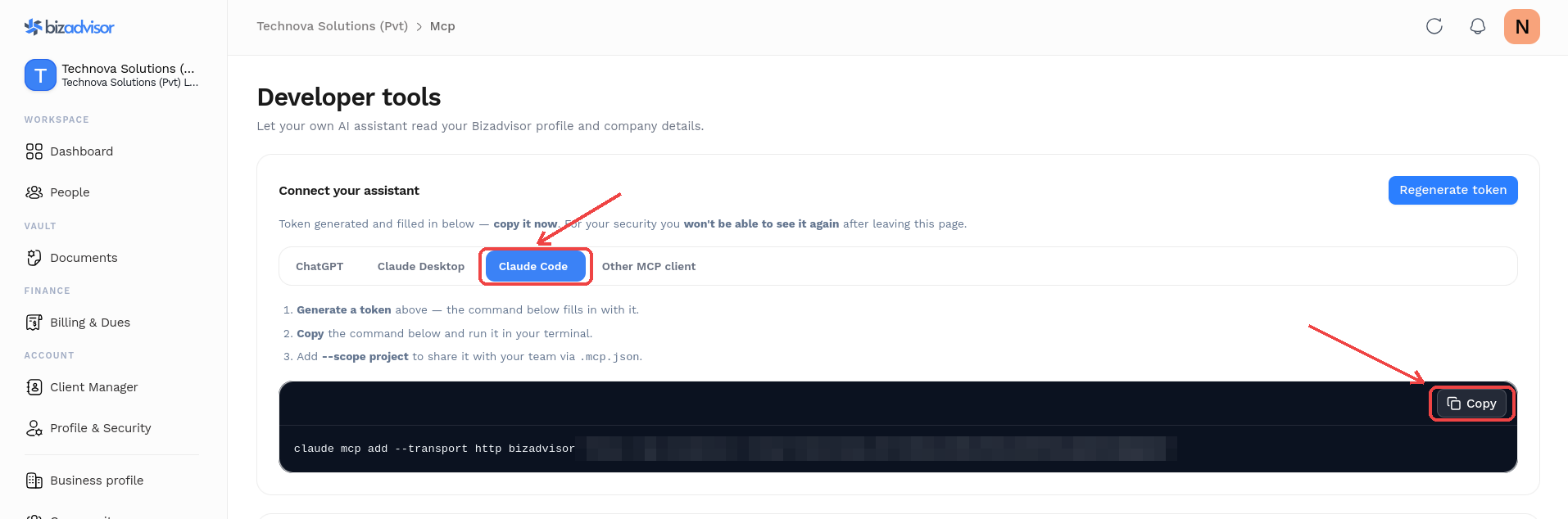
Claude Code will confirm that the bizadvisor server was added.
Add --scope project on the end if you want to share the connection with your team through a .mcp.json file in your repository.
Anything else
Using a different assistant? If it supports MCP, add a new Streamable HTTP server and point it at the same address. Nothing else needed.
Check that it worked
Ask your assistant something you would otherwise have had to log in and look up:
Who are the directors of my company, and who is our company secretary?
If it comes back with your actual directors, by name, you are connected. If it apologises and says it cannot see your account, the key was probably not pasted in fully, so create a fresh one and try again.
After that, the questions worth asking are the ones that would normally mean opening three tabs and digging through a folder. Pull together everything the bank is going to ask for. Tell me what has changed in the tax law that affects us. Work out what percentage of the company each shareholder actually owns.
How we keep it safe
This is a key to your company's records, so it is fair to ask what protects it.
We never store your key. We keep only a scrambled version, plus the first few characters so you can tell your keys apart in the list. Even we cannot read your key back.
The key is tied to you, not to a company. It carries your identity and nothing more.
We check your access every single time. Not once when you set it up, but on every question your assistant asks. So if you ever leave a company, your assistant loses access to it on its very next question, with nothing for you to remember to do.
One thing to keep in mind. Your key sits inside a web address, which is what makes setting this up so easy, but it also means that address is a secret. Do not paste it into a WhatsApp group, do not include it in a screenshot, and do not put it anywhere public. If you ever do by accident, cancel it. That is what the Revoke button is for, and it costs you nothing.
Managing and cancelling keys
Every key you have created is listed further down the same page, under Your tokens. For each one you can see which assistant it was made for, when you created it, when it was last used, and when it runs out. A key that has not been used in months is easy to spot, and worth cancelling.

Click Revoke and that key stops working immediately. Any assistant still using it loses access at once. You cannot undo it, but you can always create a new key, so there is no real cost to cancelling one you feel unsure about. When in doubt, cancel it.
This is also the reason to create a separate key for each assistant you connect. If you ever need to cut one off, you cut off that one, and everything else keeps working.
Get started
Developer tools is live in the Bizadvisor platform right now, and no other business consultation firm in the country offers it. Open platform.bizadvisor.lk/mcp, create your key, and connect the assistant you already use.
If you would like a hand setting it up, or you want to talk through what else your assistant could be doing with your company information, call us on 077 700 444 6 or email support@bizadvisor.lk.
Related Articles
Weave: All-in-One HR Platform for Sri Lankan Teams
Weave is an all-in-one HR platform built for Sri Lankan businesses. It runs payroll with EPF, ETF and PAYE, records attendance from fingerprint terminals or mobile check-in, and manages leave, rosters and employee records in one system.
Bizadvisor Launches Advisor AI: 24/7 Trilingual Business Advice Directly on WhatsApp
Advisor AI is the Bizadvisor assistant on WhatsApp. Message +94 77 609 1167 to check whether a company name is free at the ROC, get package prices, and ask about tax, annual returns and BO forms in English, Sinhala or Tamil.
Quarterly Income Tax Instalments in Sri Lanka: IRD's Revised Method for 2026/2027
IRD Circular SEC/2026/E/06 sets how quarterly income tax instalments are calculated from the Year of Assessment 2026/2027. First instalment due on or before 15 August 2026. The formula, the three methods, and what to file.